1Password: Password Manager
AgileBitsProductivity
4.82.38K Reviews
- Version
- 8.12.34
- Installs
- 1.00M
- Age Rating
- Everyone
Screenshots
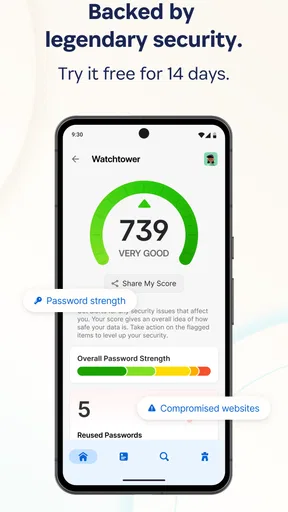
Our Review of 1Password: Password Manager
 Analysis by Appyee
I recently got my hands on 1Password: Password Manager, and let me tell you, it's been a game-changer. If you're anything like me, juggling countless passwords can feel like a full-time job. But with 1Password, the task becomes a breeze. Here's my take on this nifty app based on my experience using it.
What changes when you use a password manager every day
The real benefit is not simply having a place to put credentials; it is being able to stop reusing the same few passwords across unrelated accounts. I find a manager most useful when it becomes part of the normal sign-in routine: create a unique password when registering, save it immediately, and let autofill handle the next visit. That small habit is more dependable than trying to remember which variation I used on a particular site.
For example, imagine signing up for a delivery service while waiting for a bus. I can generate a password I would never bother memorizing, save it, and later sign in on another device without sending myself a note or searching through old messages. The convenience is practical, but the security gain comes from avoiding a shared password that could expose several accounts if one service has a breach.
There is a short adjustment period. I have to remember the master password and get used to opening the manager instead of typing credentials from memory. If I have only a handful of accounts and already use a platform’s built-in password storage, the extra step may not feel worthwhile. For a larger collection—or one spread across different devices—the organized vault starts to earn its place.
Getting Started: A Seamless Setup
First things first, downloading and setting up 1Password is as easy as pie. Whether you're on Android or iOS, you can find it in the respective app stores. Once installed, you're greeted with a clean, intuitive interface that makes the initial setup process straightforward.
The app prompts you to create a master password. This is your key to the kingdom, so make it strong yet memorable. I appreciate how 1Password emphasizes security from the get-go, ensuring your data is locked tight.
Choosing what belongs in the vault
I would start by adding the accounts I use most often rather than trying to migrate every login in one sitting. Email, banking, shopping, and the account used to recover other accounts are good candidates because losing access to them can cause disproportionate trouble. Once those are in place, I can add less-used logins as they come up. This gradual approach is easier to check for mistakes than a rushed, all-at-once cleanup.
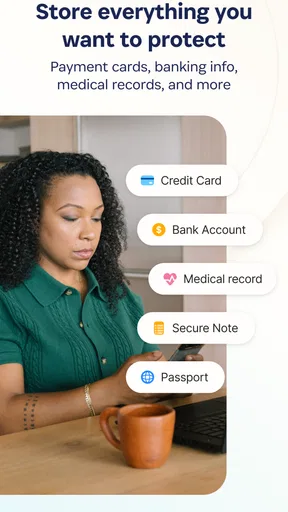
It is also worth treating the vault as a place for more than passwords without turning it into a junk drawer. A secure note can be useful for information I need to retrieve privately, while payment details can save repeated typing when I shop. I would still keep a separate, ordinary reminder system for tasks and dates: a password manager is strongest when sensitive reference material is kept distinct from everyday to-do lists.
Features That Stand Out
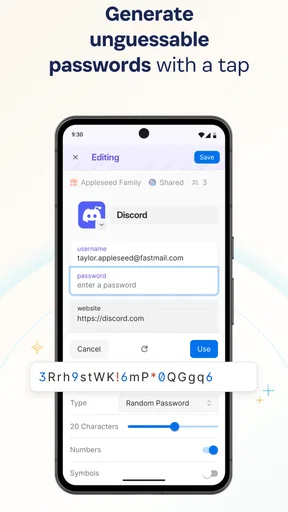
One of the first features that caught my eye is the password generator. I’ve always struggled with coming up with secure passwords that I can remember. This generator creates complex passwords for you—no more stressing over whether your password is "password123" level of insecurity.
My practical tip is to let the generator do its job and avoid editing a strong result just to make it look familiar. When a website imposes its own password rules, I can adjust the generated password to meet those requirements rather than falling back on a reused one. The trade-off is that I need the manager available when I sign in; the point is to remember one strong master password, not every generated credential.
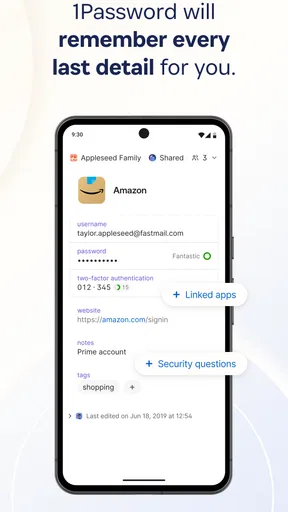
Another cool feature is the digital vault. It’s not just about passwords here; you can store credit card details, secure notes, and even documents. It’s like having a digital safe right on your phone. Plus, it syncs across devices, which is super handy if you’re moving between your phone, tablet, and computer.
That mix is especially useful when a login is only one part of a task. I might need a saved account, a payment method, and a private note while arranging travel or handling a household bill. Keeping related sensitive details in one protected place reduces the temptation to leave them in an inbox or an unprotected note. I would still think carefully before saving material I rarely need: convenience is not a reason to collect more sensitive information than I actually use.
Usability and Interface
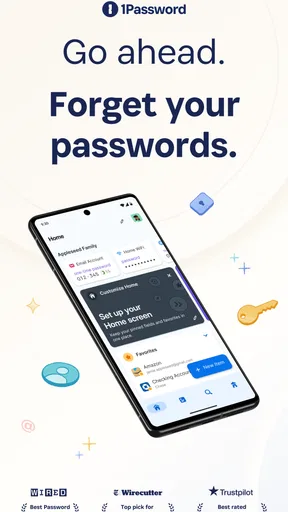
The user interface is sleek and user-friendly. Navigation is a breeze, and I never found myself lost or confused about where to go next. The design is minimal yet effective, focusing on functionality without unnecessary bells and whistles.
On a small phone screen, the app is most valuable when it removes typing rather than asking me to browse the vault for every login. I would use search when I know the account name, but I would also build the habit of saving new credentials at the moment they are created. That makes later retrieval more reliable and avoids the awkward situation of discovering that I never saved a changed password.
One standout aspect is the search functionality. It’s lightning-fast and helps you locate any password or document in a jiffy. Trust me, in a world where we have hundreds of accounts, this is a lifesaver.
A useful way to keep search effective is to use clear, recognizable names for entries, especially where several accounts share a service name. That becomes important for family, work, or side-project logins that look similar at a glance. Search can locate what is stored, but it cannot resolve ambiguity if I have saved duplicate or outdated entries, so occasional tidying is part of using a vault well.
Security at Its Core
Security is where 1Password truly shines. It uses end-to-end encryption to ensure your data is secure. Even the team at 1Password can’t access your information, highlighting the app’s commitment to privacy.
That protection does not remove the need for sensible account habits. I would choose a master password that is difficult to guess but realistic for me to enter correctly, and I would avoid storing it beside the device I am trying to protect. The master password is the one credential that deserves deliberate attention: a manager can generate and remember the rest, but I still need a reliable way to access the vault.
I also love the Travel Mode feature. It allows you to remove sensitive data from your devices temporarily, perfect for when you’re crossing borders. Then, once you're safe and sound, you can restore everything with just a tap.
For someone who travels with a phone containing work and personal logins, that is a more specific benefit than a general promise of security. I would decide before a trip which information I genuinely need on the device, rather than waiting until I am already on the move. The feature is less relevant to someone who rarely travels or whose main concern is simply remembering everyday website passwords, so it should not be the sole reason to choose the app.
Integration and Compatibility
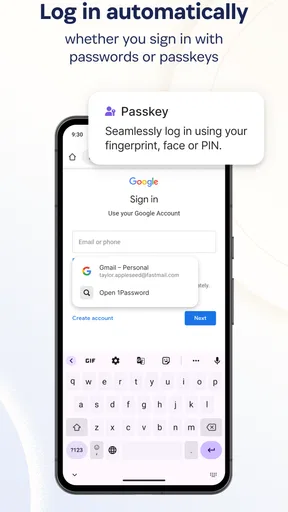
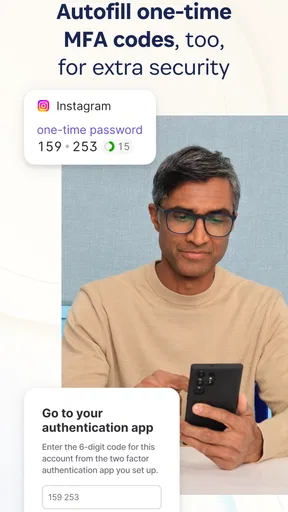
1Password plays well with others. It integrates seamlessly with browsers like Chrome and Safari, allowing you to autofill passwords effortlessly. Additionally, it supports biometric logins, so you can use your fingerprint or face recognition to unlock the app.
Autofill is the part I would test early, because the experience depends on how I sign in: a browser, an app, or a site that presents an unusual login flow may not feel identical. If a prompt does not appear, searching for the saved entry is a useful fallback. Biometric unlocking makes repeated access less tedious, but it is a convenience for opening the vault, not a replacement for choosing and safeguarding the master password.
This compatibility extends to various platforms. Whether you're on a Mac, Windows, or Linux, 1Password has you covered. The cross-platform support is perfect for tech-savvy users who juggle multiple devices.
The broader point is that I do not have to organize my digital life around one phone brand. That is where a dedicated manager can have an edge over a password tool tied closely to a single browser or operating system, especially if I switch between a phone and a computer from another platform. In contrast, someone who stays entirely within one ecosystem may find the built-in password manager simpler and sufficient; the choice is really between broader, dedicated vault management and fewer moving parts.
Who will get the most from it
I would recommend it most to people with many accounts, people who regularly move between mobile and desktop, and anyone who wants passwords, payment details, and private notes handled in one organized vault. It also makes sense for someone trying to replace reused passwords with unique ones without relying on memory. The biggest payoff comes when I use it consistently, not merely when I install it and leave a few entries untouched.
It is less compelling for a person who rarely signs in anywhere, wants only basic password autofill, or does not want to adopt a separate account and vault routine. A browser’s built-in manager can be an easier starting point for that narrower need. I would also think twice if I am unwilling to keep track of a master password; adding a manager is not helpful if I do not have a safe, dependable way to unlock it.
As a productivity app from AgileBits, it focuses on reducing the small interruptions that come from forgotten credentials and repeated sign-in details. It is free to download, rated for Everyone, and its current version is 8.12.4. The app has a 3.6 average from around 17,000 ratings, with more than a million installs, so it has clearly found a substantial audience while still receiving a mixed response. Those figures do not tell me whether it will suit a particular person, but they are a reminder to judge the daily workflow rather than assume every password manager feels the same.
Final Thoughts: Worth the Investment?
So, after diving deep into 1Password, is it worth it? In my opinion, absolutely. The peace of mind knowing that my passwords and sensitive information are secure is invaluable. While it does come with a subscription fee, the security and convenience it offers justify the cost.
The price question deserves a closer look before committing. The app is free, while in-app purchases range from $4.99 to $239.99 per item, so I would check the available option and terms in the app before deciding what suits me. That is a meaningful distinction from a manager that is simply bundled into a browser or operating system: the dedicated experience may be worth paying for if I use its broader vault and cross-device workflow, but not if I only need occasional autofill.
If you’re someone who values security and efficiency, I’d recommend giving 1Password a shot. It might just be the digital lifeline you didn’t know you needed.
My own verdict is positive, with one condition: I would commit to using it as the place where new passwords go, rather than keeping a parallel collection in notes and memory. That consistency is what makes the generator, search, and autofill work together as a useful routine. If you want a focused manager with a wider role than basic browser storage, it is a strong candidate; if simplicity and avoiding another subscription matter more, your device’s built-in option may be the better fit.
Ready to dive in? You can download 1Password from the app store and start organizing your digital life today. Trust me, it’s a decision your future self will thank you for.
Verdict
Strengths of 1Password: Password Manager
- User-friendly interface enhances usability.
- Strong encryption ensures data security.
- Cross-platform sync keeps data consistent.
- Biometric login for quick access.
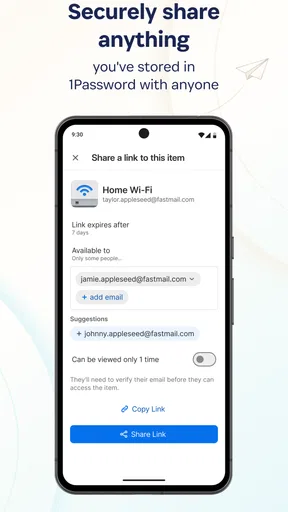
- Secure password sharing with trusted contacts.
Limitations of 1Password: Password Manager
- Subscription model may deter some users.
- Limited free features available.
- Occasional sync delays reported.
- No offline access to vaults.
- Complex setup for advanced features.
Similar Picks in This Category
View All
Google Calendar
Google LLC4.6

Google Drive
Google LLC4.3

Google Assistant
Google LLC3.9

Microsoft OneDrive
Microsoft Corporation4.6

Samsung Calendar
Samsung Electronics Co., Ltd.4.1

Microsoft OneNote: Save Notes
Microsoft Corporation4.6
Frequently Asked Questions
What platforms does 1Password support?
1Password is a versatile password manager available on multiple platforms including Android, iOS, Windows, macOS, and Linux. It also offers browser extensions for Chrome, Firefox, Safari, and Edge. This cross-platform availability ensures that users can access their passwords and secure information from virtually any device or operating system.
How secure is 1Password?
1Password uses end-to-end encryption to secure your data, meaning that only you have access to your passwords and other sensitive information. It employs AES-256 bit encryption, which is a standard used by governments and banks. Additionally, your Master Password is never stored or transmitted, ensuring robust security measures are in place.
Can 1Password generate strong passwords?
Yes, 1Password includes a built-in password generator that creates strong, random passwords for your accounts. This feature ensures that each password is unique and difficult to crack, enhancing your online security. You can customize password length and complexity based on your specific needs or website requirements.
Does 1Password offer family or team plans?
1Password provides both family and team plans, allowing you to share passwords and secure notes with trusted members. The family plan supports up to five users, while team and business plans offer additional administrative features and user management options, making it suitable for both personal and professional use.
Is there a free version of 1Password?
1Password offers a free trial period, allowing users to explore its features before committing to a subscription. However, after the trial, a paid subscription is required to continue using the service. The subscription model ensures ongoing updates and support, contributing to a secure and reliable password management solution.
